
Securing Your Account: Setting Up Two-Factor Authentication
Once you've logged in to your account, we strongly recommend taking a few minutes to set up an extra layer of security. This is called two-factor authentication (2FA), and it means that even if someone ever gets hold of your password, they still can't get into your account.
Step 1: Go to the Security Tab
After logging in, look at the left-hand sidebar and scroll to the bottom. You'll see a Security option near the "Log out" button. Click it.
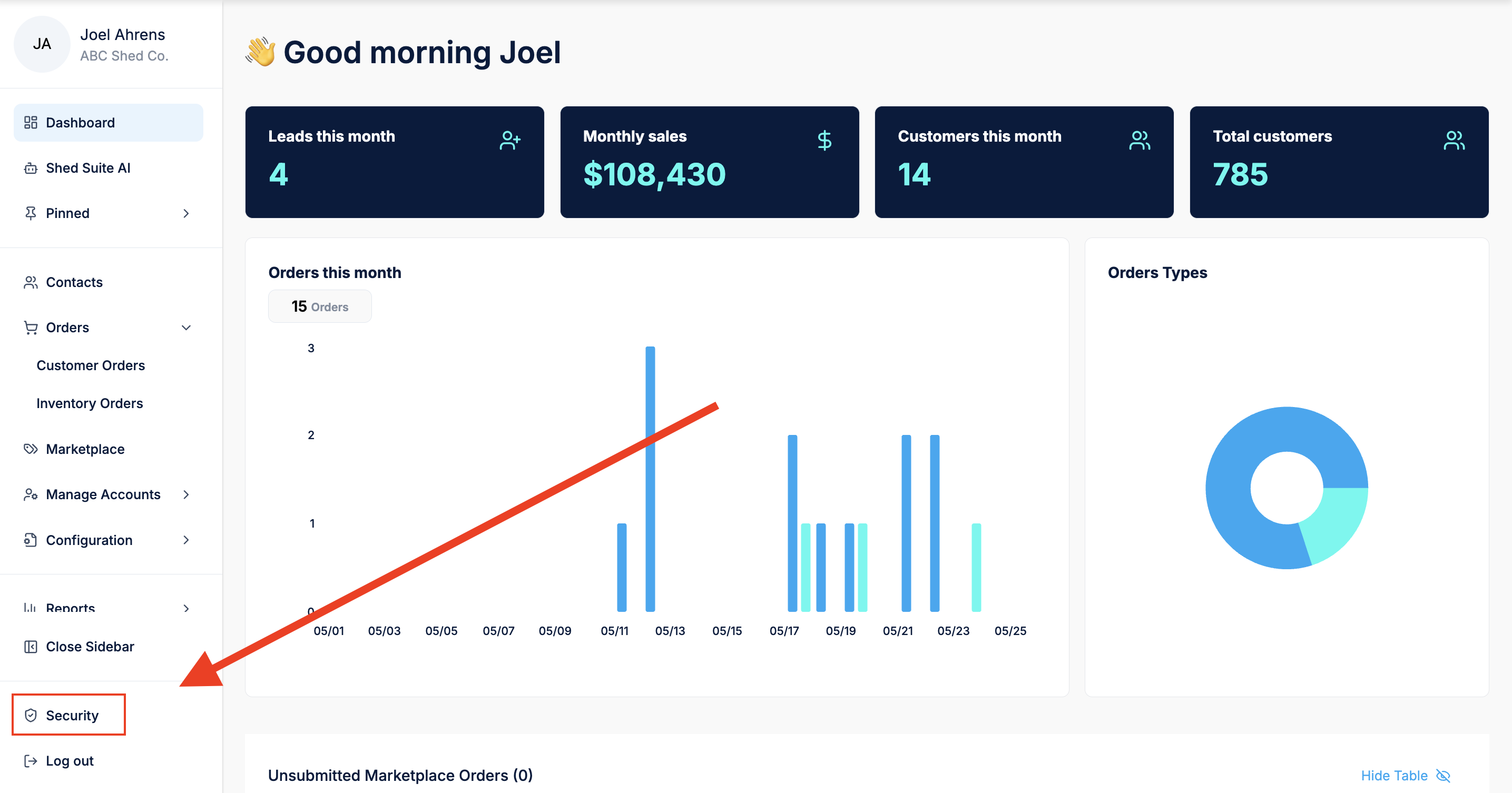
Step 2: Choose Your Authentication Method
On the Security page, you'll see two recommended options. You only need to set up one of them.
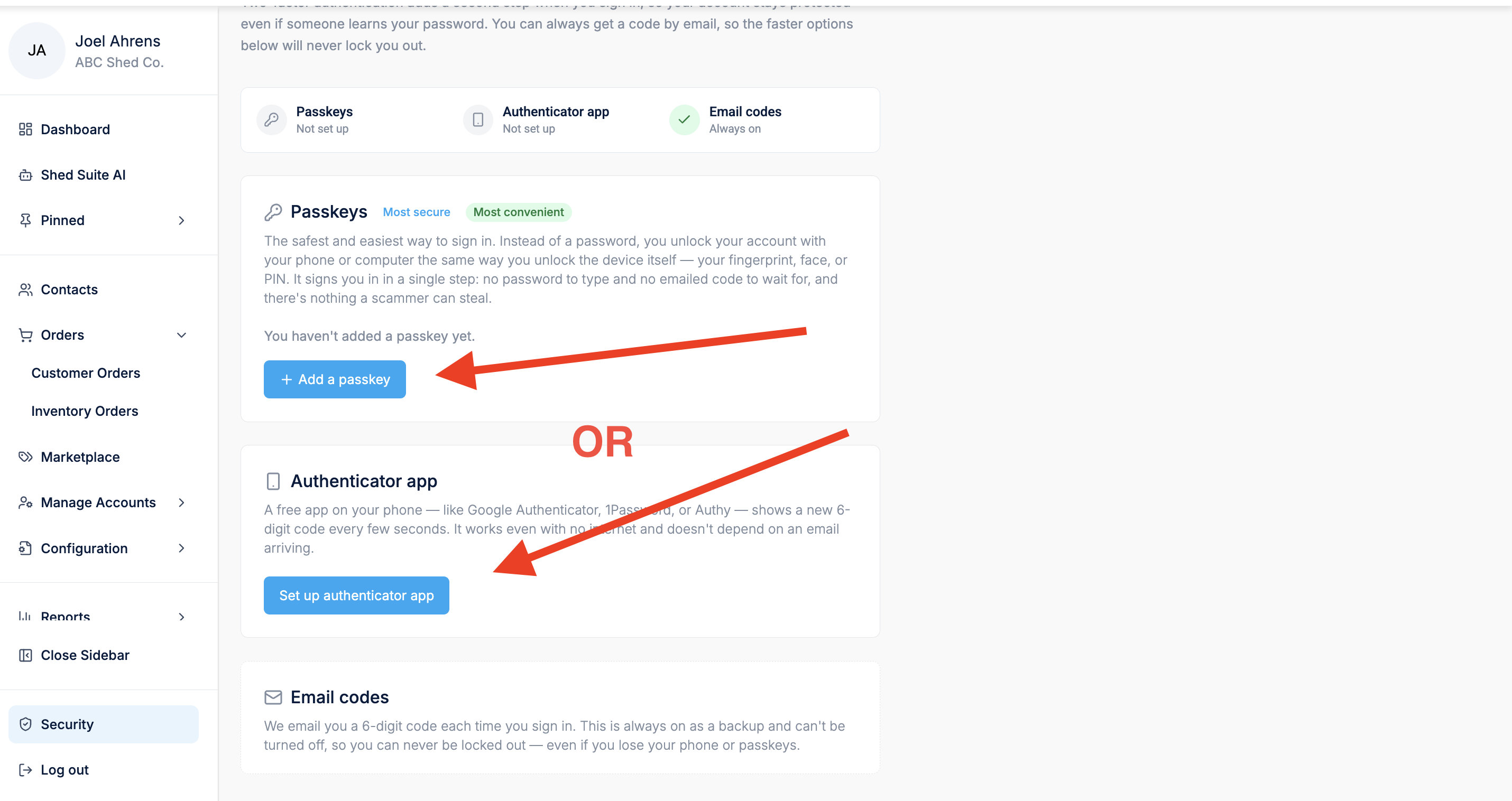
Option A: Passkey (Recommended)
A passkey is the easiest and most secure option. Instead of typing a password, you simply unlock your account the same way you unlock your phone — with your fingerprint, face, or PIN.
To set it up, click "+ Add a passkey" and follow the on-screen prompts. Your device will guide you through the process in just a few seconds.
Option B: Authenticator App
If you'd prefer not to use a passkey, an authenticator app is a great alternative. These are free apps — such as Google Authenticator, Authy, or 1Password — that generate a fresh 6-digit code every 30 seconds. When you log in, you'll be asked to enter the current code from the app.
To get started:
- Download one of the apps above from your phone's app store (search "Google Authenticator" or "Authy").
- Return to the Security page and click "Set up authenticator app."
- A QR code will appear on screen — open your authenticator app, tap the "+" or "Add account" button, and scan the QR code with your phone's camera.
- Enter the 6-digit code shown in the app to confirm it's working, and you're all set.
A Note on Email Codes
Even without setting up a passkey or authenticator app, your account always has a backup: a 6-digit code sent to your email each time you log in. This can never be turned off, so you'll never be completely locked out. However, we still recommend adding a passkey or authenticator app for faster, more secure access.
If you have any trouble during setup, don't hesitate to reach out to our support team.